Create AI Voiceover
AI Voice 2.0 is the new more flexible option. It adds prompt-based styling, voice selection by language, quality choices, and dialogue.
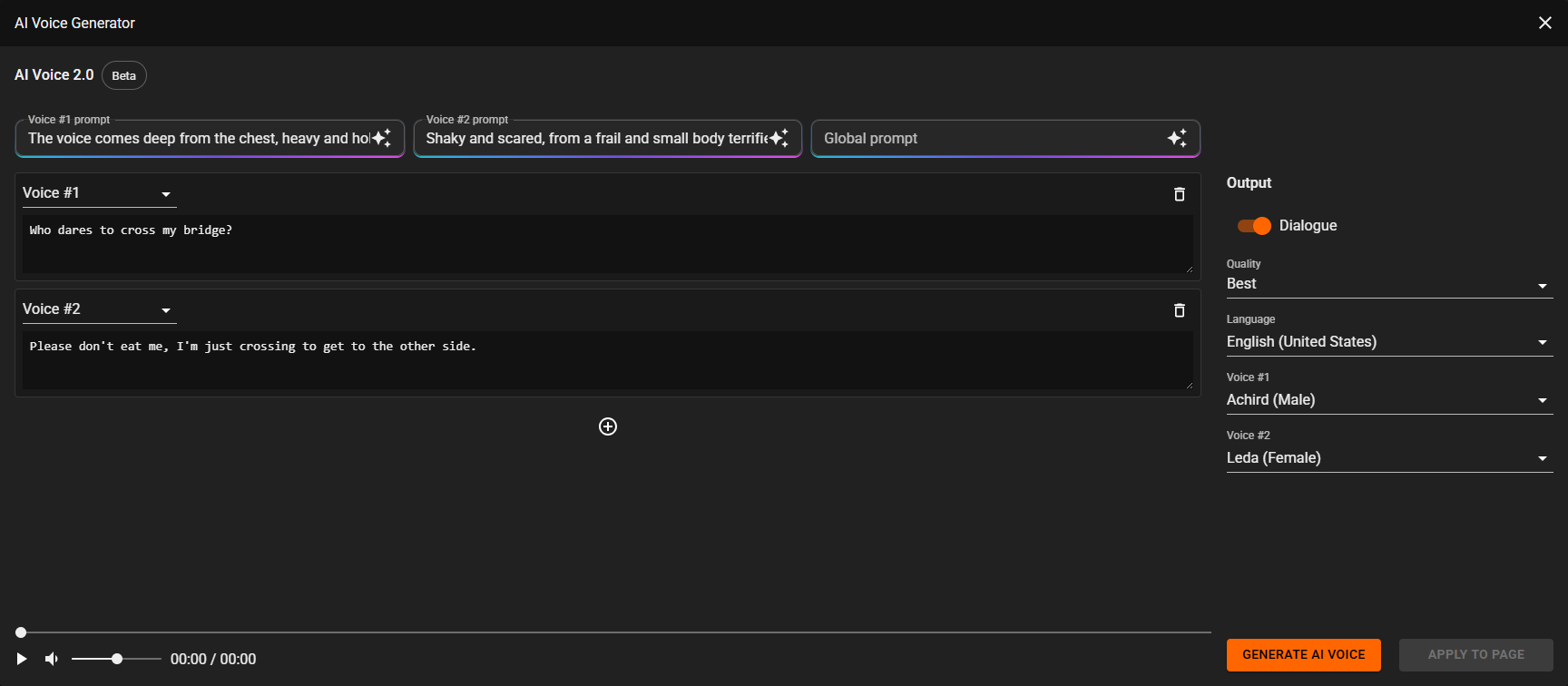
What you can do
- Write one speaker script or a two-speaker script
- Choose
FastorBestquality - Choose a language
- Choose one voice or two voices
- Give style prompts that shape how the audio is read
- Generate the audio
- Preview it immediately
- Apply it to the page
In MentorKit the workflow to add AI Voiceover to a page is the following:
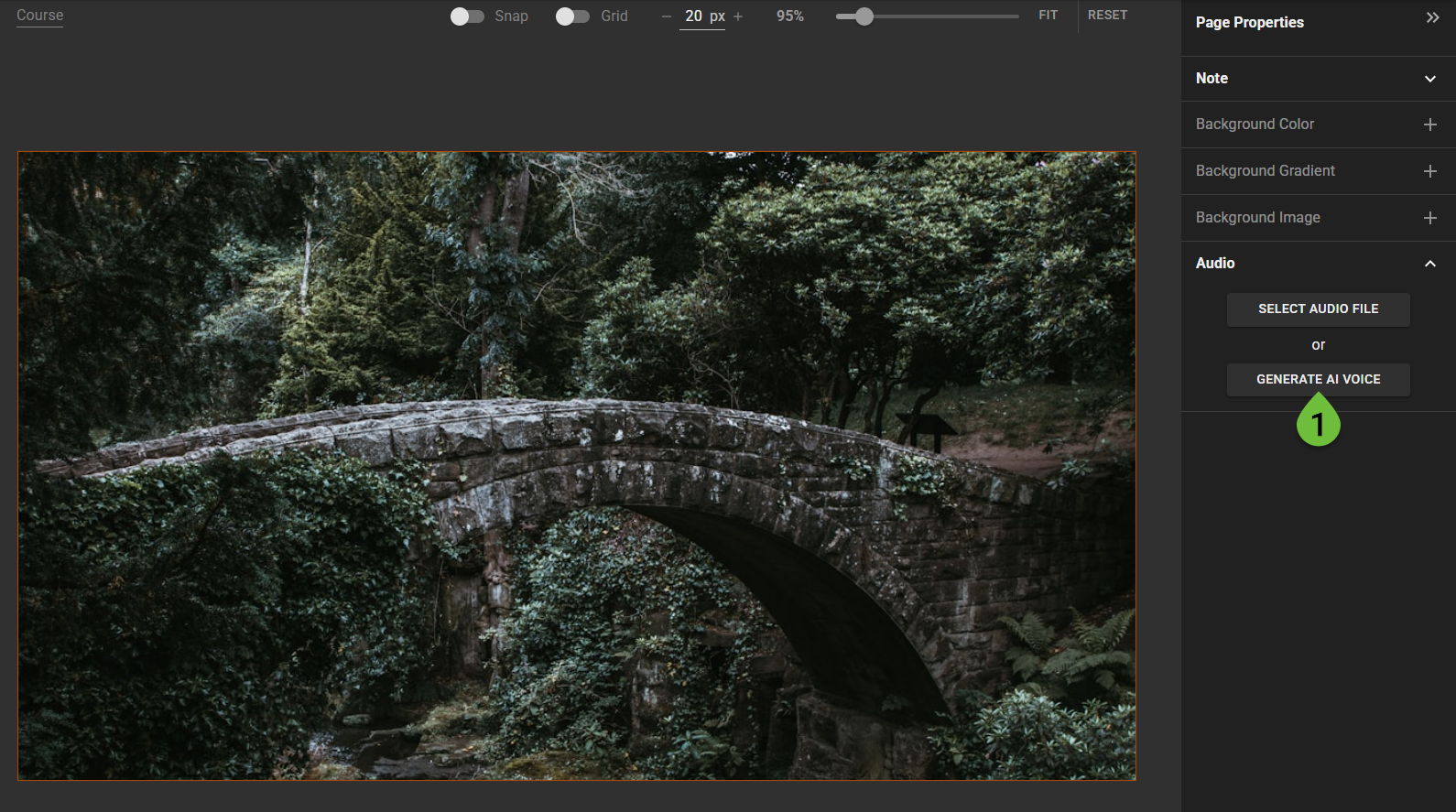
- Click on "Audio" to expand the menu, then click on "Generate AI Voice".
- Write the text you want to read up by the AI voice.
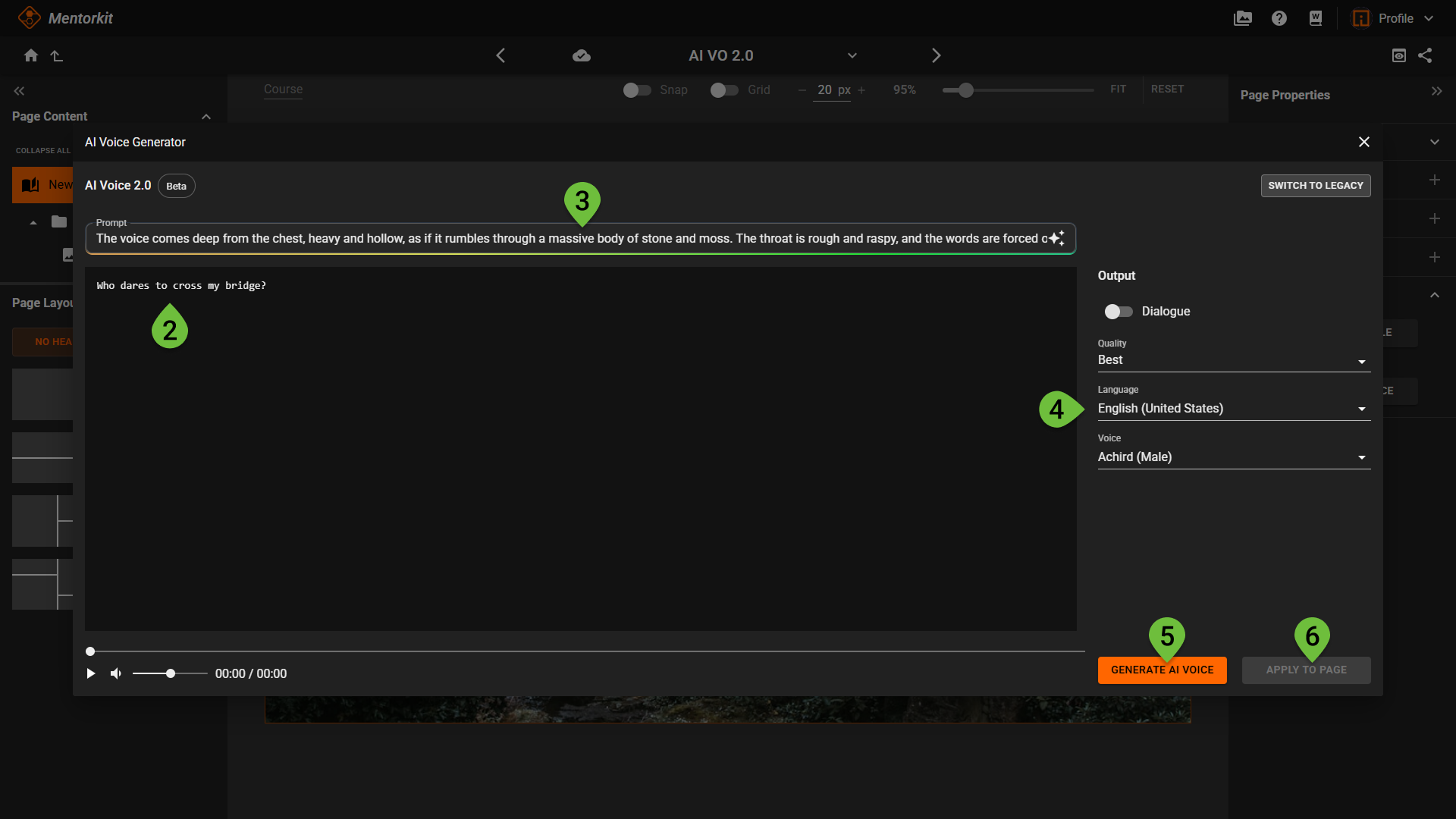
- Write your promt for how you want the AI to read your text.
- Select the quality, language and voice you want to use.
- Click on "Generate AI Voice" to start generating your voiceover with the choices you have made.
- Apply it to the page when you are happy with the result.
Single-speaker mode
This is the default mode for normal narration.
You write one block of text, choose a voice, optionally add a prompt, then generate the result.
This works well for:
- narration
- welcome messages
- spoken summaries
- instructional audio
Dialogue mode
When Dialogue is turned on, the editor changes from one large text field to separate input sections.
For each section you can:
- choose whether it belongs to
Voice #1orVoice #2 - write the text for that speaker
- add more sections
- remove sections you do not need
This is useful for:
- conversations
- role-play
- interview-style audio
- scenarios with back-and-forth dialogue
The speaker assignment matters. Each section will be spoken by the voice chosen for that speaker, so the order and labeling of the sections directly shape the final conversation.
What each option changes
Quality
Bestaimed at higher-quality outputFastaimed at quicker generation
Use Fast when you are iterating and testing different versions. Use Best when you want the more polished final result before applying it to the page.
Language
Language controls both pronunciation style and the list of voices you can choose from.
Choose the language that best matches the text you are writing. If the spoken result sounds unnatural, checking the language first is usually the fastest fix.
Voice
Voice choice affects the personality of the result. Different voices can feel warmer, firmer, calmer, brighter, or more formal even when the script stays the same.
In dialogue mode:
Voice #1controls one speakerVoice #2controls the other speaker
Choosing clearly different voices usually makes dialogue easier to follow.